
Free Online Photoshop Alternatives
Table of Contents
- Introduction: Why Look for Photoshop Alternatives?
- Comparison Table of Online Photoshop Alternatives
- Photopea: The Closest Browser-Based Photoshop Replacement
- Mockofun: A Powerful Tool for Photo Edits & Creative Designs
- Pixlr: Fast and Easy Online Photo Editing
- Adobe Express: Quick Designs from the Adobe Family
- Canva: The Best Choice for Templates and Visual Content
- Fotor: AI-Powered Photo Editing Made Simple
- Conclusion: How to Choose the Best Photoshop Alternative
- Online Photoshop Alternatives FAQ
Why Look for Photoshop Alternatives?
Adobe Photoshop has been the industry standard for photo editing and graphic design for decades. However, its subscription cost, advanced interface, and learning curve can make it challenging for beginners, students, casual creators, and small businesses.
Fortunately, many online Photoshop alternatives provide powerful editing features directly in a web browser. These tools can help users edit photos, create graphics, design social media posts, remove backgrounds, apply effects, and produce professional-looking visuals without installing expensive software.
After testing and analyzing their features, the best free online Photoshop alternatives in my opinion are Photopea, MockoFun and Pixlr. These options give you powerful tools for editing photos and making digital art without paying for an expensive subscription.
Online Photoshop Alternatives Compared
| Rank | Tool | Best for | Photoshop-like features | PSD support | Ease of use |
|---|---|---|---|---|---|
 1 1 | Photopea | Closest free online Photoshop alternative |  |  Excellent Excellent | Medium |
 2 2 | MockoFun | Photo editing, creative design, text effects, graphics | |  Good Good | Easy |
3  | Pixlr | Quick image editing and simple designs | |  Basic, limited Basic, limited | Easy |
| 4 | SumoPaint | Basic photo edits, painting and creative effects | |  No No | Medium |
| 5 | Adobe Express | Quick photo edits, social media graphics, and marketing designs | | Basic | Easy |
| 6 | Canva | Templates, social media, marketing graphics | | Basic, limited | Very easy |
| 7 | Polarr | Professional photo color editing | | No | Easy–Medium |
| 8 | Fotor | AI enhancements and quick edits | | No | Very easy |
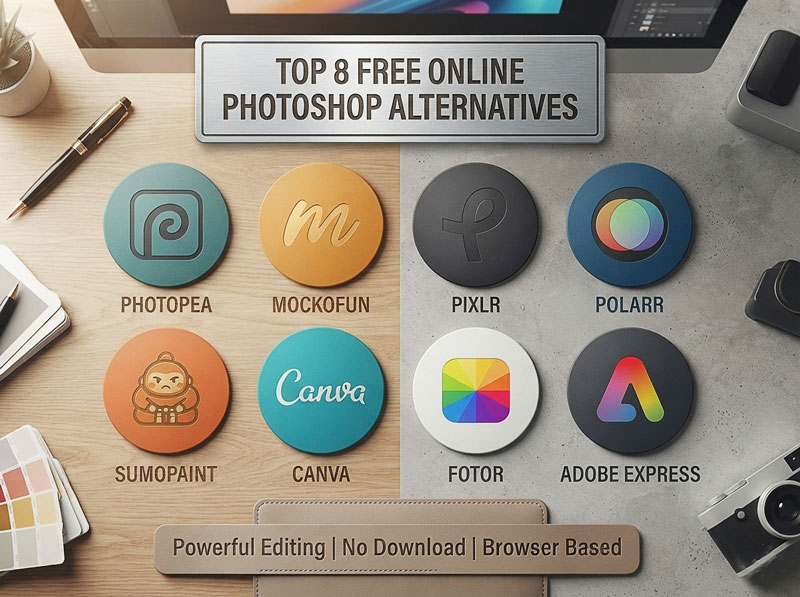
In this quide, we explore the best online Photoshop alternatives: Photopea, Mockofun, Pixlr, SumoPaint, Polarr, Adobe Express, Fotor and Canva.
1. Photopea: The Closest Browser-Based Photoshop Replacement
Photopea is the most popular free Photoshop alternatives available online. Its interface closely resembles Photoshop, making it a strong choice for users who already know Adobe’s software or want a similar experience.
One of Photopea’s biggest advantages is its support for professional file formats, including PSD files. Users can work with layers, adjustment tools, masks, smart objects, and many other features normally found in desktop editing programs.
Best features:
- Supports PSD, XD, Sketch, and RAW files
- Layer-based editing
- Advanced selection tools
- Works directly in a browser
- Free version available
Best for:
Photopea is ideal for photographers, designers, and advanced users who need Photoshop-like features without paying for a subscription.
2. Mockofun: Powerful Photo Editing and Graphic Design
Mockofun is an extremely capable hybrid editor online. It features advanced photo editing with full blending modes, layer mask, clipping masks, and non-destructive smart filters making it a great online Photoshop alternative. It can also open PSD files with some limitations.
It is also a graphic design tool focused on creating stylish visuals quickly. It offers many useful features for creating posters, social media graphics, logos, AI generated images and AI enhancement.
Its strength is simplicity. Users can combine text effects, shapes, icons, photos, and backgrounds to create attractive designs without needing advanced editing skills.
Best features:
- Photo editing with smart filters
- Easy image composition
- Layer mask, Blend modes
- AI photo enhancement
- Text effects and typography tools
- Templates for creative projects
- Simple design workflow
- Useful for social media graphics
Best for:
Mockofun works well for beginners, students, bloggers, marketers, and anyone who wants to create eye-catching designs or photo edits quickly.
3. Pixlr: Fast and Easy Online Photo Editing
Pixlr is a browser-based photo editor designed for quick edits and creative projects. It offers two main experiences: a simpler editor for beginners and a more advanced version for users who want additional control.
Pixlr includes tools for cropping, adjusting colors, adding effects, removing backgrounds, and enhancing images. Its modern interface makes it accessible for users who do not want a complicated editing program.
Best features:
- AI-powered editing tools
- Filters and effects
- Background removal
- Layer support
- Fast browser performance
Best for:
Pixlr is a good option for quick photo improvements, social media images, and everyday editing tasks.
4. SumoPaint: An Online Editor for Digital Art & Image Editing
SumoPaint is a browser-based graphics editor that combines photo editing with digital painting and illustration tools. It offers a familiar layer-based workflow, making it suitable for users who enjoy creating artwork as well as editing images.
The platform includes brushes, filters, effects, drawing tools, and basic photo editing features, allowing users to create illustrations, digital paintings, posters, and creative compositions without installing desktop software.
Best features:
- Layer-based editing
- Digital painting brushes
- Drawing and illustration tools
- Filters and creative effects
- Color adjustment tools
- Shapes and text tools
- Easy browser-based workflow
Best for:
SumoPaint is a great choice for artists, students, hobbyists, and creative users who want an accessible online editor for digital painting, illustrations, and basic photo editing.
5. Adobe Express: Quick Designs from the Adobe Family
Adobe Express provides an easier approach to creative design compared with traditional Photoshop. It focuses on speed and simplicity, offering ready-made templates for social posts, presentations, flyers, videos, and marketing materials.
Users can combine images, text, animations, and branding elements without needing advanced design knowledge.
Best features:
- Professional templates
- Brand customization tools
- Quick image editing
- Social media design options
- Integration with Adobe services
Best for:
Adobe Express is suitable for small businesses, content creators, and users who want polished designs with minimal effort.
6. Canva: The Best Choice for Templates and Visual Content
Canva is one of the most widely used online design platforms. Instead of focusing only on photo editing, it specializes in creating complete visual projects such as presentations, social media posts, posters, documents, and marketing materials.
Its drag-and-drop interface and large library of templates make it especially popular among beginners and businesses.
Best features:
- Thousands of templates
- Drag-and-drop editing
- Collaboration tools
- Social media designs
- Brand kits and design resources
Best for:
Canva is best for people who need to create professional-looking graphics quickly without learning complex editing techniques.
7. Polarr: AI-Powered Photo Editing for Professional Results
Polarr combines advanced photo editing tools with artificial intelligence to help users create polished, professional-looking images quickly. It is designed primarily for photographers and content creators who want precise color adjustments without the complexity of traditional desktop software.
The platform offers powerful editing controls, customizable filters, portrait retouching, and AI-powered enhancements, making it an excellent choice for improving photos directly in a web browser.
Best features:
- AI photo enhancement
- Professional color correction
- Portrait retouching
- Custom filters and presets
- Batch photo editing
- Background removal
- Effects and overlays
Best for:
Polarr is a great choice for photographers, influencers, and content creators who want professional-quality photo enhancements with an intuitive, browser-based editor.
8. Fotor: AI-Powered Photo Editing Made Simple
Fotor combines traditional photo editing tools with artificial intelligence features. It is designed for users who want fast improvements rather than complex manual editing.
The platform offers tools for enhancing image quality, creating effects, retouching portraits, and generating creative visuals.
Best features:
- AI photo enhancement
- Portrait retouching
- Background editing
- Collage maker
- Creative filters
Best for:
Fotor is a great choice for beginners, photographers, and users who want automatic improvements with fewer editing steps.
How to Choose the Best Photoshop Alternative Online
The best Photoshop alternative online depends on your editing goals, skill level, device, and budget. Instead of choosing a tool based only on features, consider what you need to create and edit.
- Professional photo editing: Choose tools with advanced features such as layers, masks, filters, RAW editing, retouching tools, and detailed controls.
- Quick photo edits: Beginners may prefer simple editors with drag-and-drop tools, automatic adjustments, and an easy-to-use interface.
- Layers and masks: Essential for professional image editing.
- Blending modes: Useful for creative compositions and advanced effects.
- Non-destructive filters: Allows changes without permanently damaging the original image.
- PSD editing: If you need to work with Photoshop files, choose an alternative that can open and edit PSD files while keeping layers, text, and other editable elements.
- Graphic design: For social media posts, ads, presentations, and marketing materials, look for templates, fonts, design elements, and easy layout tools.
- Templates and design assets: Useful for social media, marketing, and branding.
2. Check Essential Features
- AI tools: Features like background removal, image enhancement, and AI image generation can make editing faster and easier.
- File support: Make sure the editor supports important formats such as PSD, PNG, JPG, GIF, and PDF.
- Performance: Lightweight editors can load images faster and work better on older computers or devices with limited resources.
- Device compatibility: Check whether the tool works on your preferred devices, including Windows, Mac, Linux, Chromebook, tablets, or mobile.
3. Compare Pricing and Value
- Free alternatives: Choose free tools if you need basic photo editing, simple designs, or occasional use without an Adobe subscription.
- Cheaper Photoshop replacements: Look for affordable tools that offer Photoshop-like features such as layers, filters, retouching, and AI tools.
- One-time payment options: Consider tools with a single purchase if you want to avoid recurring subscription fees.
- Paid plans: Compare premium features, usage limits, storage, and extra tools before upgrading.
Online Photoshop Alternatives FAQ
What is the best free online Photoshop alternative?
The best free online Photoshop alternative depends on your needs. Photopea is one of the closest replacements for Photoshop because it supports PSD files, layers, masks, and many advanced editing tools. If you want an easier tool with photo editing, AI enhancements, creative text effects and graphic design features, Mockofun is an excellent free option.
Can I use Photoshop online for free?
Adobe offers limited free editing through Adobe Express, but the full version of Photoshop requires a paid subscription. If you want a free browser-based editor with Photoshop-like features, tools such as Photopea and Mockofun are good alternatives.
Which online photo editor supports PSD files?
Photopea offers the best PSD compatibility and you can easily open, edit, and save Photoshop files. Mockofun has basic PSD file support, allowing users to open and edit PSD files. The only downside is that you can not save them as PSD.
Which Photoshop alternative is best for beginners?
If you’re new to photo editing, Mockofun, Canva, Adobe Express, Fotor and Pixlr are easy to learn because they have simple interfaces and ready-made templates. Choose Mockofun if you need an ease to use program with professional editing tools.
Which online editor has layers and masks?
Several online editors support layers, but not all include advanced masking tools.
The best options are: Photopea, Mockofun and SumoPaint. These editors allow you to work with multiple layers for more precise image editing.
Which online Photoshop alternative has AI tools?
Many modern online editors include AI features.
Popular AI-powered editors include: Mockofun, Pixlr, Fotor, Canva and Adobe Express. Common AI features include background removal, image enhancement, object removal, image generation, and automatic photo retouching.
Can I edit photos without installing software?
Yes. All the editors in this guide work directly in your web browser. You don’t need to download or install software to crop images, remove backgrounds, add text, apply filters, or create graphics.
Which Photoshop alternative is best for graphic design?
For graphic design, Mockofun, Canva and Adobe Express are among the best choices. They include templates, fonts, icons, shapes, and design tools that make it easy to create social media posts, posters, flyers, presentations, and marketing materials.
Which Photoshop alternative online is best for photographers?
Photographers often prefer Photopea for advanced editing and PSD support or Polarr for professional color correction and AI-powered photo enhancement. Mockofun and Fotor are another good options for quick photo retouching.
Are online photo editors safe to use?
Most well-known online photo editors use secure connections and are safe for everyday editing. If you’re working with sensitive or confidential images, review the platform’s privacy policy and avoid uploading files you don’t want stored online.
Do online Photoshop alternatives work on Mac and Windows?
Yes. Because they run in a web browser, most online photo editors work on Windows, macOS, Linux, and Chromebooks. Many also work on tablets without installing desktop software.
Which online Photoshop alternative is the closest to Adobe Photoshop?
If you’re looking for a Photoshop-like experience, Photopea is the closest match thanks to its familiar interface, layer-based editing, masks, adjustment layers, and PSD support. Mockofun is another strong alternative, offering advanced editing tools together with AI features, non-destructive filters, and powerful text effects.
Are free online Photoshop alternatives good enough?
Yes. Free online editors have improved significantly in recent years. Many now include professional features such as layers, masks, AI editing, background removal, filters, and templates. For most users, a free online editor is enough for photo editing, graphic design, and creating content for websites or social media.
 5 MockoFun Use Cases
1. Photo Editing Without Photoshop using MockoFun
To edit photos without Photoshop use Mockofun. Our online photo editor has layers, blending modes, clipping masks, layer masks, and smart filters. You can easily apply non-destructive photo effects, remove background and enhance your images without installing desktop software.
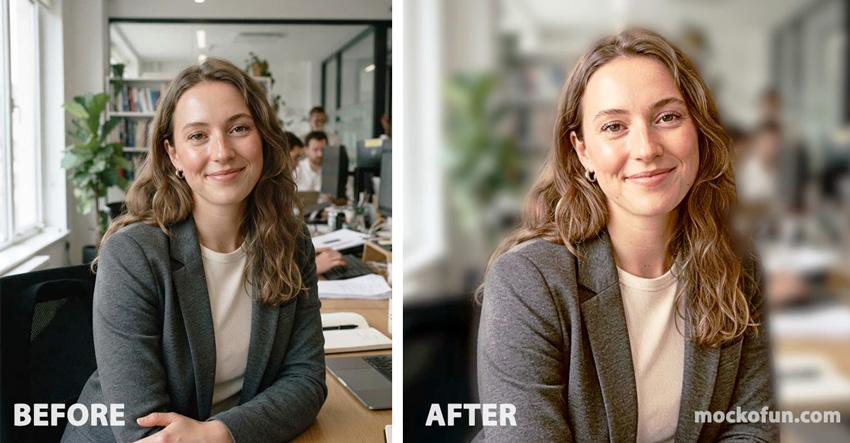
Use Case: Enhance and retouch a portrait photo for social media or professional use.
Practical Example:
- Upload a portrait photo.
- Adjust brightness, contrast and colors.
- Remove the background with the background remover
- Apply a soft blur to the background using the image blur tool
- Add a subtle color filter and sharpen the image.
- Crop the image (with Mockofun you can cut pictures into shapes like circle, square, custom shapes like heart, star, etc. or irregular shapes)
- Export the final photo as a high-quality JPG or PNG with transparent background if needed.
Result: A polished, professional-looking portrait ready for LinkedIn, Instagram, or a personal website. The retouched photo delivers:
- Better subject separation: The blurred background keeps the attention on you, which is ideal for a professional profile photo.
- More polished look: The shallow depth of field gives it a clean, modern, high-quality feel without looking overly edited.
- Professional but approachable: The smile comes across naturally, and the office setting is still recognizable without being distracting.
| User need | Percent | Why they use it |
|---|---|---|
| Crop, resize, flip, rotate | 85–90% | Social media, websites, documents |
| Basic adjustments (brightness, contrast, saturation, levels, curves, exposure) | 75–85% | Improve photo quality |
| Text, shapes & annotations | 65–75% | Marketing, presentations, memes |
| Background removal | 60–70% | E-commerce, profile photos, designs |
| Export/compression (PNG, JPG, WebP, PDF) | 55–65% | Sharing and web optimization |
| Layers & masking | 40–50% | Designers and advanced users |
| Photo filters & effects | 40–50% | Quick visual styling |
| Batch editing | 25–35% | Photographers, businesses |
| Color replacement & selection tools | 20–30% | Product images, branding |
| Professional retouching | 15–25% | Portraits and commercial photography |
2. Create Social Media Graphics in MockoFun
Design eye-catching posters, flyers, banners, thumbnails and ads for Instagram, Facebook, YouTube, LinkedIn, Pinterest, and other platforms. Use ready-made templates, text effects, icons, and AI-powered tools to create professional visuals in minutes.
Use Case: Design an eye-catching poster for an event, promotion, or social media campaign.
Practical Example:
- Start with a blank canvas or choose a ready-made poster template.
- Add a background using a solid color, gradient, texture, or high-quality image.
- Insert a bold headline (customize it with stylish fonts, text effects, and colors).
- Add text with event details, promotional information, or a call to action.
- Include icons, illustrations, shapes, stickers, or decorative elements.
- Upload your own logo, photos, or graphics if needed.
- Arrange and align all elements for a clean, balanced layout.
- Apply filters, shadows, or transparency effects to create depth and visual impact.
- Export the finished poster as a high-quality JPG, PNG, or PDF for print or digital sharing.
Result: A professional, visually appealing poster ready for printing or publishing online.
3. Create a Transparent PNG Logo in MockoFun
Build logos, brand assets, and marketing graphics with customizable fonts, vector shapes, icons, and effects. Use layer-based editing for precise control while keeping the workflow simple for beginners.
Use Case: Design a custom logo with a transparent background for websites, business cards, or merchandise.
Practical Example:
- Create a new transparent canvas.
- Add your business name using a stylish font.
- Insert icons or vector shapes (you can create any shape with AI).
- Apply gradients, shadows, and blending effects.
- Align and group the logo elements.
- Export the logo as a PNG with a transparent background.
Result: A clean, high-resolution PNG logo that can be used on websites, presentations, social media, packaging, and marketing materials without any background.
4. AI-Powered Creative Content in MockoFun
Generate AI images with Mockofun, improve photo quality with AI enhancement, and combine AI-generated artwork with traditional editing tools.
This makes it easy to create unique visuals for websites, blogs, presentations, and digital marketing campaigns.