
 Create Scary Portraits in One Click: Get Our Halloween Filter
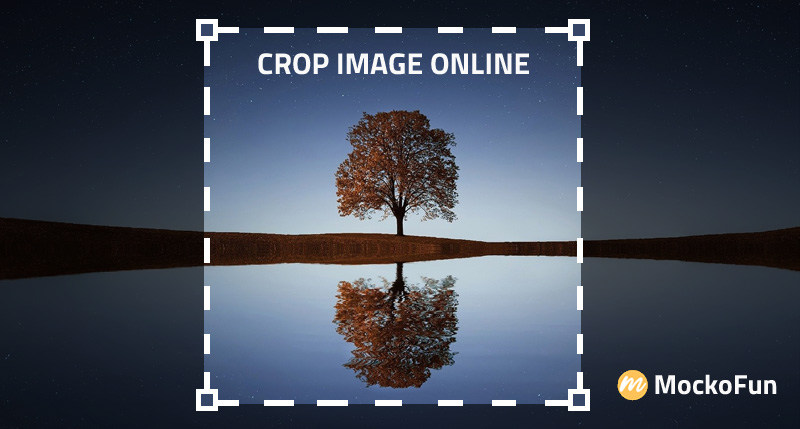
Upload and crop your photo to the desired ratio.
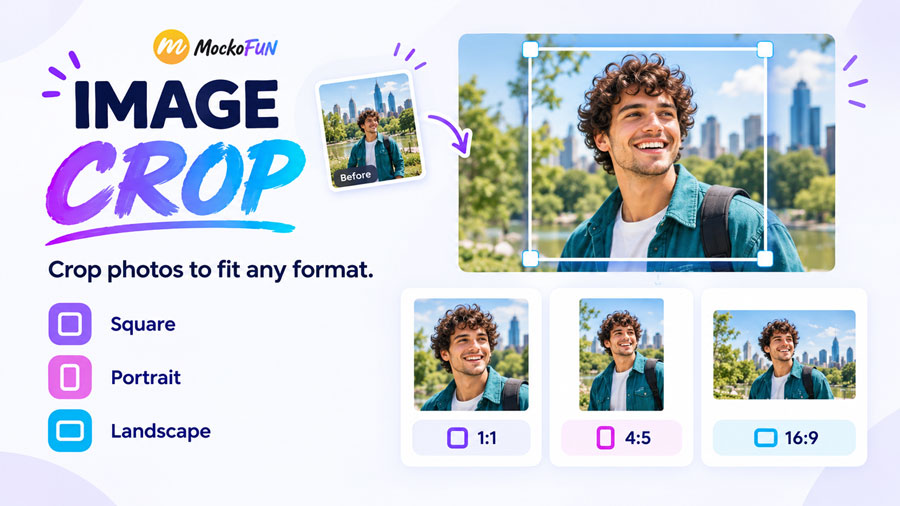
Photo Cropper
Crop Photo Online
Need to crop an image quickly?
Mockofun helps you crop photos, images, screenshots online for free no matter the file format.
- Crop JPG images to your desired ratio.
- Crop PNG and WebP files while preserving the transparency.
- Crop GIF and change the aspect ratio by cutting off the sides, top, or bottom, just like cropping a regular photo.
Our crop image online tool lets you trim photos in seconds without installing software.
Whether you’re preparing images for social media, websites, online stores, presentations, or printing, this tool makes it easy to remove unwanted edges, improve composition, and focus attention on the most important part of your photo.
Mockofun Image Cropper Key Features
The crop image in Mockofun offers these options:
- Free online image cropping tool
- Custom freeform crop and preset aspect ratios
- Freehand crop around a subject
- Crop images into shapes
- Fast browser-based processing
- No software installation required
- Supports popular image formats (JPG, PNG, WebP, GIF,)
- High-quality output
Why Use The Mockofun Online Image Cropper?
Cropping an image helps you:
- Change the aspect ratio
- Remove unwanted edges or empty space
- Remove unwanted objects
- Improve photo composition and framing.
- Highlight the main subject without changing the rest of the image.
- Crop for Instagram and other social media requirements.
- Create a profile picture (avatar cropper)
- Crop images for banners, thumbnails, and documents.
How to Crop Image Online
Step 1. Upload Your Photo
Step 2. Crop Your Image
Step 3. Download
In Mockofun photo editor online, you can easily crop images, photos, screenshots and logos. The cropping tool works great for formats like JPG, PNG, WebP, GIF, etc.
Here are steps that you have to make in detail:
- Upload or drag and drop your image (JPG, PNG, WebP, GIF)
- Adjust the crop area. Choose an aspect ratio for quick results or use the freehand tool to crop irregular shape online.
- Apply the crop and download your edited image.
- Download your cropped image instantly for free in JPG or PNG with transparency,
Crop Ratio (Aspect Ratio Presets)
A crop ratio (or aspect ratio) is the proportional relationship between an image’s width and height.
For example, if the photo is 1000 x 1000 px, the aspect ratio is 1:1 which is a square shape.
In Mockofun you can choose from popular aspect ratios such as:
 Square (1:1) – Instagram profile/posts
 Portrait (4:5) – Instagram feed
 Story (9:16) – Stories, Reels, TikTok
 Landscape (16:9) – YouTube thumbnails, presentations
- 📄 Document / Passport presets
Freeform Crop
A custom crop lets you trim an image to a freeform size, a specific aspect ratio, or a unique shape rather than standard preset dimensions.
Freeform crop results in a rectangle. You can choose any width and height or aspect ratio, but the final image is still rectangular.
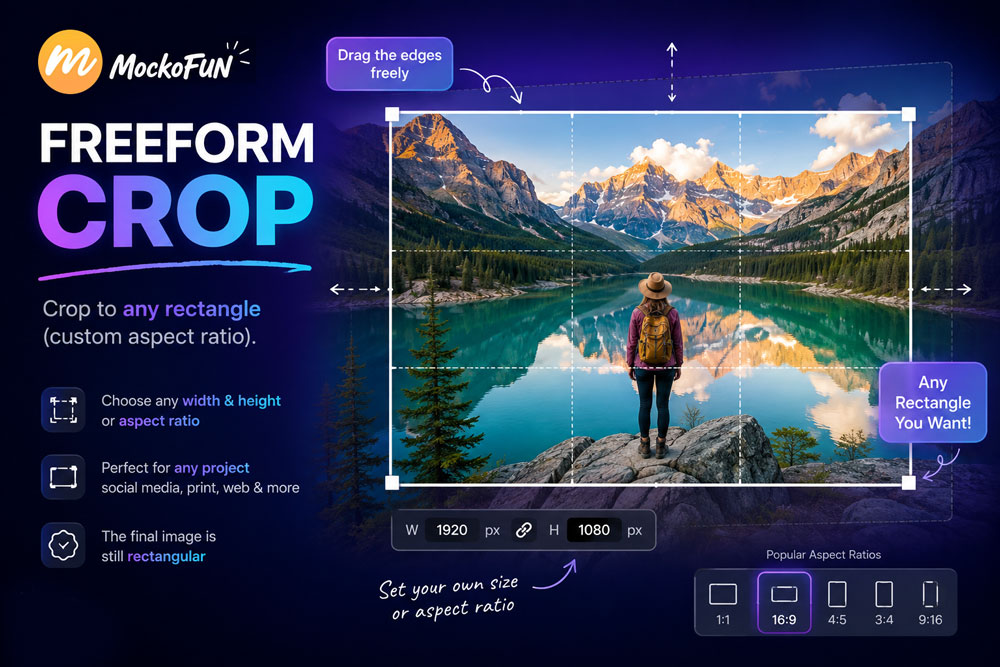
Freeform Crop → Crop to any rectangle (custom aspect ratio).
Freehand Crop Online
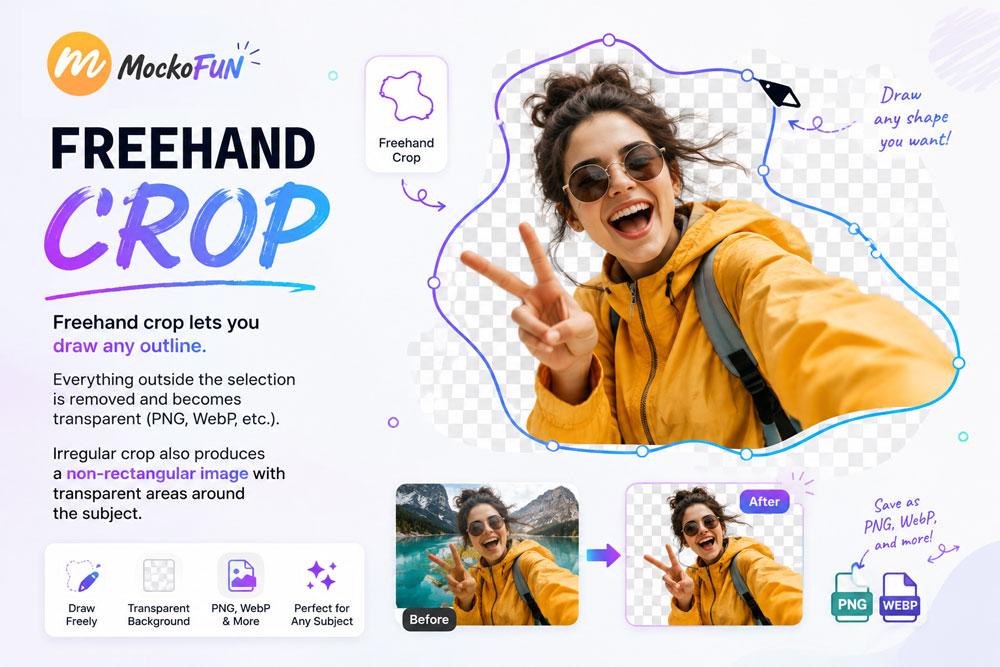
The freehand crop option lets you draw any outline. Everything outside the selection is removed and becomes transparent (save for free as PNG, WebP, etc.).
- Freehand Crop → Crop to any shape (crop transparent image background).
- Irregular crop → Also produces a non-rectangular image with transparent areas around the subject.
Shape Crop Online
Shape crop (circle, star, heart, etc.) → Creates a predefined non-rectangular shape, usually with transparency outside the shape.
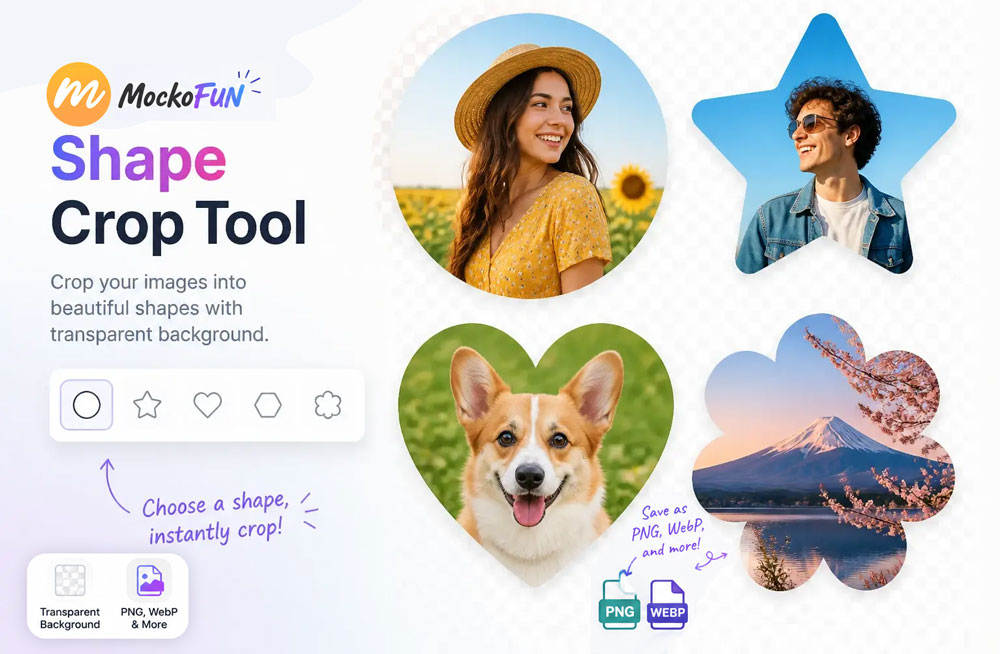
The crop image into circle online option is great for making profile pictures and avatars.
What Images Can You Crop with Mockofun?
In Mockofun you can crop many types of visuals such as:
- Photos
- Screenshots
- Logos
- Illustrations
- Memes
- Icons
- Graphics
Crop and Resize Images
After cropping images, our users often continue with other image edits like:
- Resize
- Compress
- Convert
- Remove background
Crop Image Use Cases
| Crop purpose | Estimated share of users | Typical user |
|---|---|---|
 Crop a regular photo (remove edges, improve composition) Crop a regular photo (remove edges, improve composition) | 45–55% | Phone users, casual users |
| Crop photo for Instagram and other social media (Facebook, TikTok, LinkedIn, YouTube) | 20–30% | Creators, influencers, marketers |
 Crop screenshots Crop screenshots | 10–15% | Students, office workers, developers |
 Crop logos & icons Crop logos & icons | 8–12% | Designers, website owners |
 Crop photo for passport, ID card, other documents Crop photo for passport, ID card, other documents | 3–8% | Business users, forms, visa applications |
Types of Image Cropping
- Aspect Ratio Cropping: To change aspect ratio of image involves cropping an image while maintaining a specific aspect ratio, such as 4:3, 16:9, or square. It ensures that the width-to-height ratio remains consistent, which is useful for maintaining visual harmony or meeting specific layout requirements.
- Freeform Cropping: The freehand cropping allows users to select an arbitrary area of an image to crop, without constraints on aspect ratio. This provides maximum flexibility for cropping images to specific shapes or sizes based on individual preferences.
- Centered Cropping: The center crop image involves removing equal amounts of content from the edges of an image to center the subject or focal point. It can help draw attention to the main subject and create a balanced composition.
- Subject-based Cropping: The perfect crop focuses on cropping an image to emphasize or highlight a particular subject or object within the frame. It involves adjusting the crop to ensure that the subject remains prominent and visually appealing.
- Rule of Thirds Cropping: This technique involves dividing the image into a grid of nine equal parts using two horizontal and two vertical lines, then placing the main subject or points of interest along these lines or at their intersections. Cropping based on the rule of thirds helps create a visually pleasing composition and balance in the image.
- Content-aware Cropping: The smart cropping utilizes advanced algorithms to automatically detect and preserve important elements within an image while cropping. It intelligently analyzes the content of the image to ensure that key features or subjects are retained, even after cropping.
Image Cropping Frequently Asked Questions
Here are some frequently asked questions (FAQ) about image cropping in Mockofun:
What is image cropping?
Image cropping is the process of removing unwanted outer portions of an image to improve composition, focus on a subject, or fit a specific aspect ratio or size.
What is an aspect ratio?
An aspect ratio is the proportional relationship between an image’s width and height, such as 1:1 (square), 4:3, 16:9 (widescreen), and 3:2 (common for DSLR cameras).
Can I crop an image without changing its aspect ratio?
Yes. Mockofun allows you to lock the original aspect ratio or choose a preset ratio while cropping.
Will cropping change the file size?
Usually yes. Since a cropped image contains fewer pixels, the file size is often smaller, although compression settings also affect the final size.
Does cropping affect image resolution?
Yes. Cropping reduces the total pixel dimensions (resolution) because part of the image is removed.
Does cropping reduce image quality?
Cropping itself does not reduce the quality of the remaining pixels.
What’s the difference between cropping and resizing?
Cropping removes part of the image, while resizing changes the dimensions of the entire image without removing any content.
Can I undo a crop?
Yes, in Mockofun you can restore the original image.
What are common reasons to crop an image?
Common reasons include removing distracting elements, improving composition, highlighting the main subject, fitting social media or print dimensions, and creating thumbnails or banners.
What aspect ratios are best for social media?
Common recommendations include Instagram Feed (1:1 or 4:5), Instagram Stories/Reels (9:16), Facebook Posts (1.91:1 or 1:1), YouTube Thumbnails (16:9), and LinkedIn Posts (1.91:1 or 1:1).
What file formats can I crop in Mockofun?
- Crop PNG image
- Crop JPG image
- Crop WebP image
- Crop GIF image
Can cropping improve composition?
Yes. Cropping can enhance composition by applying techniques such as the rule of thirds, removing empty space, and directing attention to the main subject.
Does cropping affect printing?
Yes. If you crop too much, the image may not have enough resolution for large, high-quality prints. Always check the required print dimensions before cropping extensively.